The legend
A Gantt chart says a lot through shape and colour: a torn edge, an orange bar, a hatched bar, a striped day, a dashed piece. The legend is the chart explaining itself. It lists the cues the chart can draw, with a small sample of each, and the samples follow the view you are looking at: its colours, and some of its settings.
This page covers opening the legend, where it sits, and how to read it. Some cues have fuller pages of their own, linked at the end.
A worked example
You run a kitchen remodel with two crews. Each crew has its own calendar note with a colour, and each task links to its crew's calendar through the property the view names as its Calendar Property (see Calendars and working time). You want one chart to show at a glance who does each task, how urgent it is and where it stands. With TaskNotes installed, under Appearance in the view's settings:
- Set Bar fill to By calendar, so each bar takes its crew's colour.
- Set Bar strip to By priority, so a strip down the left edge shows urgency.
- Set Task icon to Status, so each bar carries a status icon.
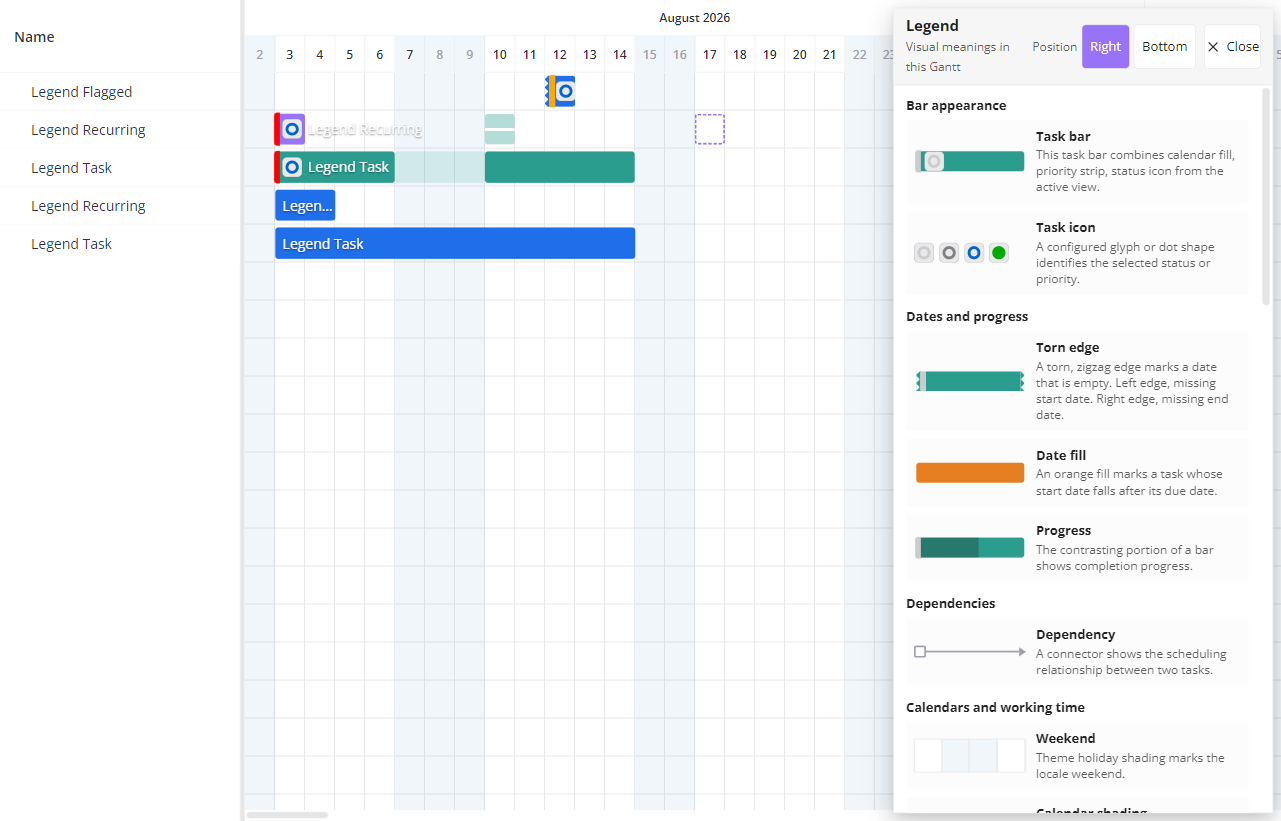
A colleague opens the chart and cannot tell the three apart. They click the Legend button. Under Bar appearance, the Task bar entry reads "This task bar combines calendar fill, priority strip, status icon from the active view." The screenshots below use the same three settings.
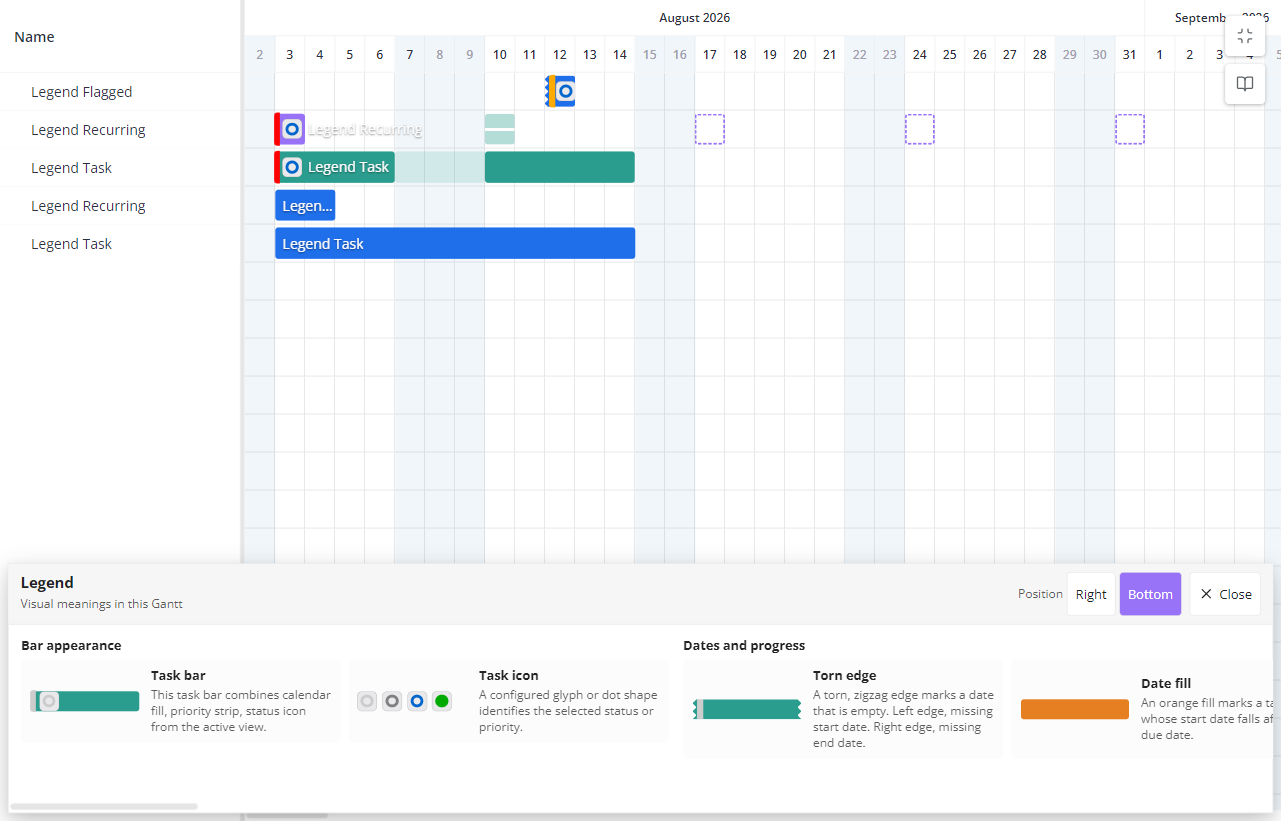
They would rather read it along the bottom, so they click Bottom in the legend's header (on a chart tall enough for it; see When the chart is too small). The next time they open it, it is back on the right, where Default legend position starts it unless you change that setting. You prefer the bottom too, so you set Default legend position to Bottom, and every opening starts there.
Opening and closing the legend
The Legend button (a book icon) sits in the top-right corner of the chart, just below the full-screen button. It does not need Show toolbar to be on.
Click it to open the legend. Close it with its Close button or with Esc. When an Obsidian popup is open on top of it, Esc closes the popup first. Switching to another tab or pane also closes the legend.
The legend floats over the chart rather than squeezing it.
Right or bottom
The legend opens on one of two sides:
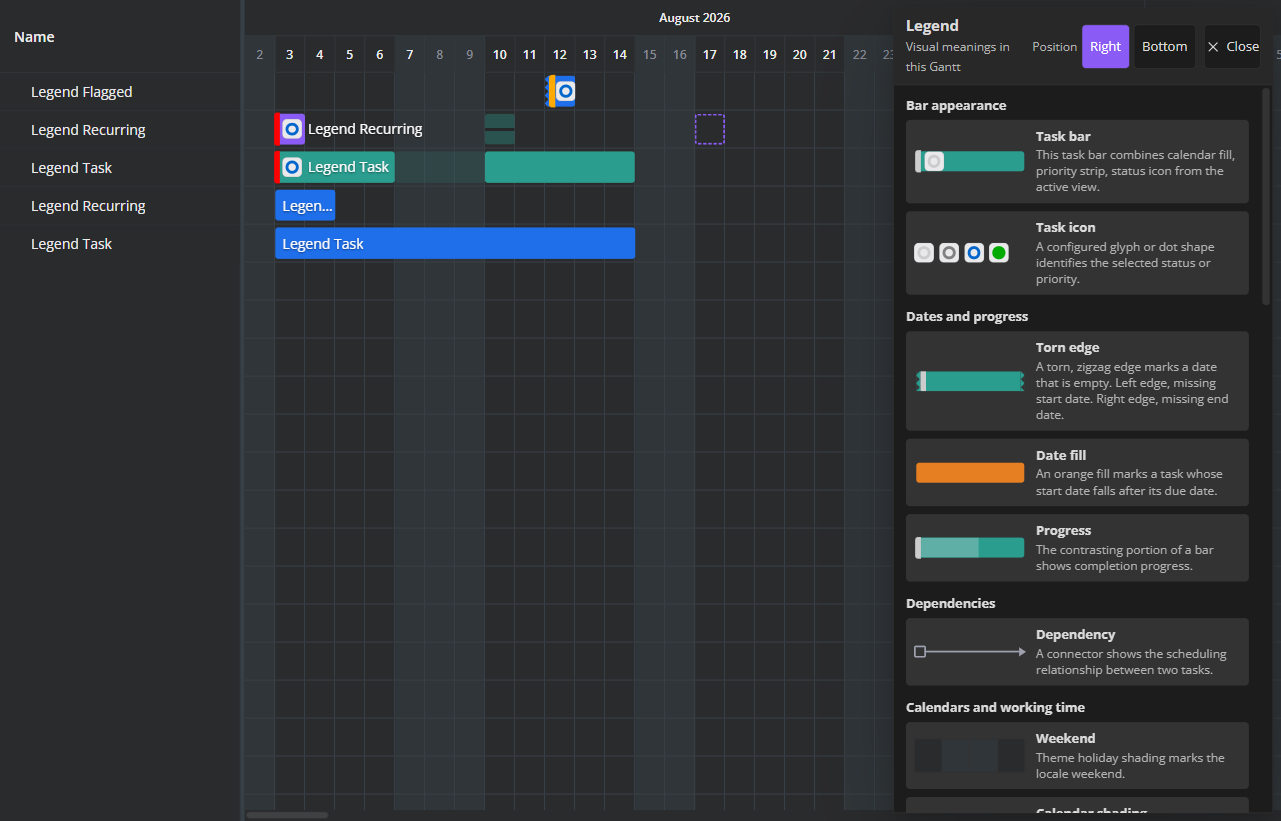
- Right: a panel down the right-hand side of the chart. Its entries scroll vertically.
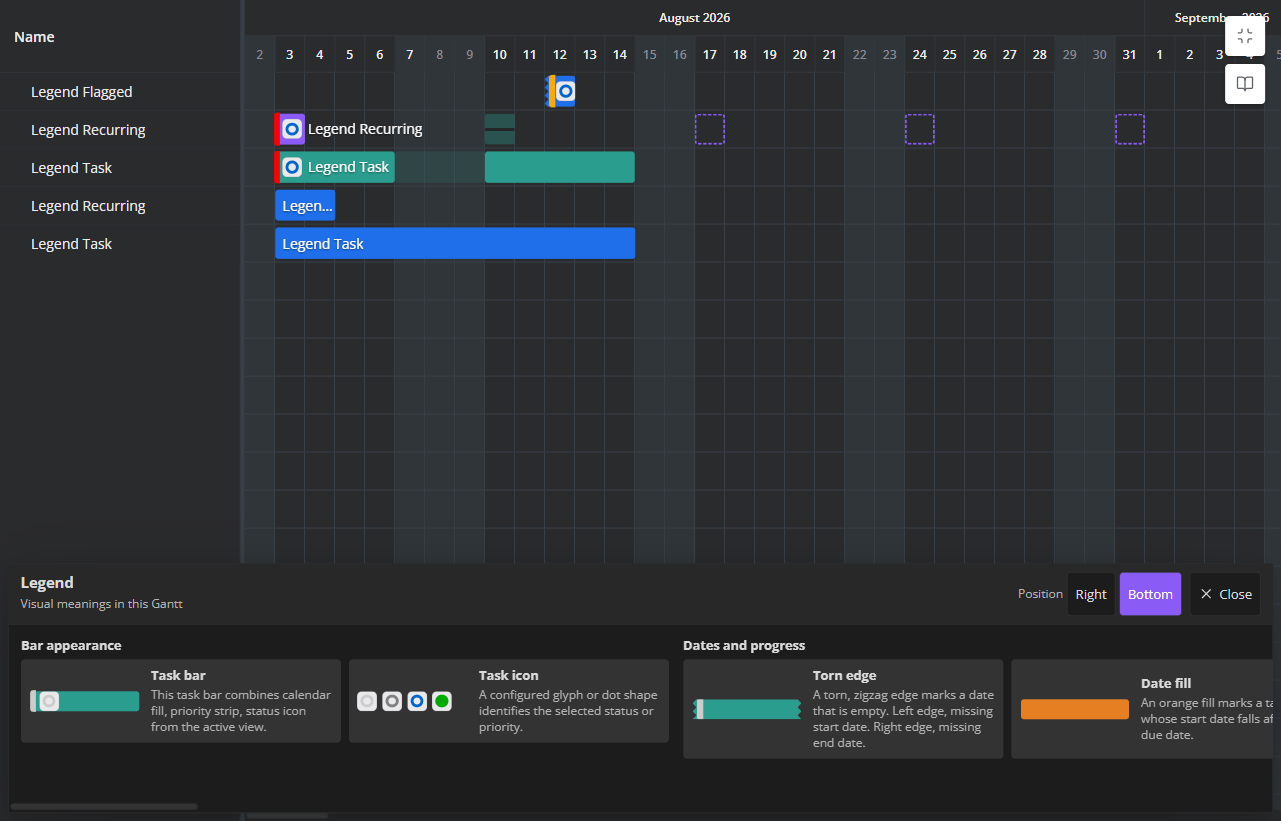
- Bottom: a strip along the bottom of the chart. Its groups sit side by side, and you scroll it sideways as well as down.
| Light | Dark |
|---|---|
 |
 |
| Light | Dark |
|---|---|
 |
 |
Moving it now, or for every opening
There are two controls, and they do different jobs:
- The Position buttons in the legend's header (Right and Bottom) move the legend while it is open. The move lasts until you close it.
- Default legend position, under Appearance in the view's settings, is the side every opening starts on.
So if the default is Right and you move the legend to Bottom, it goes back to Right the next time you open it. To change where it opens, change the setting.
When the chart is too small
Each side needs a minimum amount of room:
| Side | The chart must be at least |
|---|---|
| Right | 640 px wide and 240 px tall |
| Bottom | 480 px wide and 320 px tall |
When the chart is short of either size, the legend covers the whole chart instead. Moving it to a side that does not fit does the same: on a short chart, choosing Bottom can cover the chart at once. The Position buttons disappear and Close becomes Return, which closes the legend.
What the legend lists
Entries are grouped under six headings:
| Group | Can show, for example |
|---|---|
| Bar appearance | Task bar, Task icon |
| Dates and progress | Torn edge, Date fill, Progress |
| Dependencies | Dependency |
| Calendars and working time | Weekend, Calendar shading, Calendar conflict, Calendar event, Today, Calendar marker, and how the view treats estimates and non-working time |
| Occurrences and series | Occurrence occupancy, Next occurrence, Projected occurrence, Completed occurrence, Skipped occurrence |
| Structure and context | Replicated task, Context task, Estimate override |
Each entry pairs a sample with a short explanation.
Which entries appear
Most entries are always listed, whether or not the chart shows that cue right now. A chart without dependencies still lists Dependency, for example. The two date cues are the exception:
- Date fill is listed only while Show date-status indicators on bars is on.
- Torn edge is listed only while that setting is on and at least one task in the view is missing a date.
What follows your view
Several entries change with the view's settings:
- The Task bar sample carries the view's bar colours and icon, and its sentence describes the combination, for example "This task bar combines calendar fill, priority strip, status icon from the active view."
- The estimate entry is named Working-day estimate or Calendar-day estimate after Estimate meaning, and the non-working-time entry is named Split non-working time or Shaded non-working time after Non-working-day rendering.
- Switch Obsidian between light and dark while the legend is open and it repaints in place, staying open on the same side.
A sample is an example, not a key to every colour. When bars are coloured by status, the Task bar sample shows one status colour, not all of them. Under By calendar, the sample's colour can come from a calendar this view does not show.
Bar fill, Bar strip and Task icon
Three settings under Appearance decide how a task bar looks, and each is set on its own:
- Bar fill colours the bar's body.
- Bar strip colours a strip down the bar's left edge.
- Task icon puts a small icon on the bar.
Because they are independent, one bar can show three things at once: a bar filled by its calendar, striped by priority, with a status icon. That is the combination in the screenshots above, and the Task bar entry names it.
Two fallbacks keep a bar from going blank:
- With Bar fill and Bar strip both set to None, bars take the Default child colour (see the None row under Bar fill).
- By status and By priority need the TaskNotes status and priority colours. Without them (TaskNotes not installed, for example), those choices fall back to Default. By calendar does the same when no calendar or calendar set in the vault sets a colour.
What each value paints, and how parents and children differ, is on Settings → Appearance and Colors, icons & weekends.
Where to read more
The legend gives each cue a short explanation. These pages go further:
- Torn edges, the orange date fill and the other bar decorations: Reading bar decorations.
- Calendar shading, working days and split segments: Calendars and working time.
- Conflict stripes, markers and the today line: Calendar sets and Markers and the today line.
- Occurrences of recurring tasks and calendar events: Calendar items.
Known gaps
- A reversed bar under Split segments can show no cue. With Non-working-day rendering set to Split segments, a task whose start falls after its due date can show no orange fill, although the legend still lists Date fill.
- A narrow bar can hide its torn edge. The teeth are capped by the bar's own width, so a short task at a coarse zoom can be too narrow to show them, and a missing date then has no other signal on the bar. Zoom in to check. See Date-status indicators.