The calendar editor
A calendar note is Markdown with frontmatter, and you can always write it by hand. The calendar editor is a form over the same frontmatter. You get fields instead of YAML, a builder for the working pattern, and previews of the result before you save. Apart from the name, which is the note's file name, what you save lands in the note's frontmatter under the same keys you would type yourself.
This page covers the editor. What the keys mean (which days count as working, what shades, what stretches) is on Calendars and working time.
Create a calendar or a calendar set
Open the command palette and run one of:
- Create calendar: a working-time calendar with a Monday-to-Friday pattern and an empty list of days off.
- Create calendar set: a set with no member calendars yet.
The note is created in the Calendars folder as New Calendar.md or
New Calendar Set.md, numbered (New Calendar 2.md) if that name is taken, and
opens straight in the editor. When a vault has no calendars and no calendar sets
yet, Select calendars… offers the same Create calendar button.
Opening a note in the editor
Every note whose frontmatter has tngantt: calendar or tngantt: calendar-set
opens in the editor when you open it in the main workspace or a pop-out window.
Hover previews, embeds and canvas cards still show it as Markdown. Delete the
tngantt line and the note opens as Markdown again, even if it is open in the
editor at the time. If you disable the plugin, every calendar note opens as
ordinary Markdown.
To see the raw frontmatter of the note you are editing, run Open calendar note as markdown, or choose Open as markdown from the tab's More options (⋯) menu. To return, choose View as calendar from the same menu on the Markdown tab. Switching to Markdown does not ask about unsaved changes, so save first (see Saving and closing).
The form
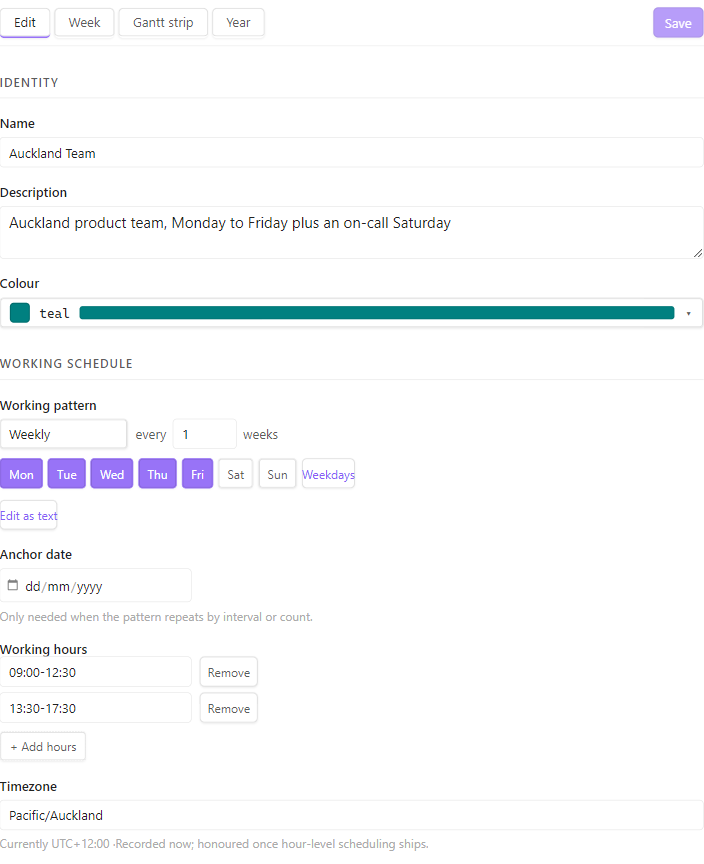
The editor has four tabs: Edit, Week, Gantt strip and Year. The Edit tab is the form:
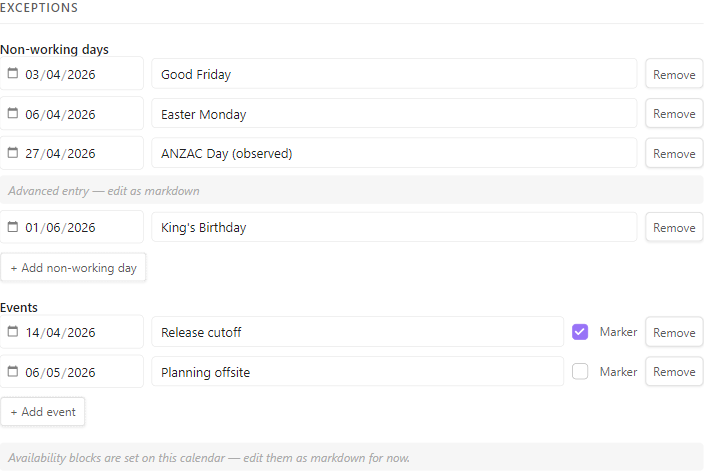
Further down, the Exceptions group holds the calendar's days off and events:
| Field | Frontmatter key | What to enter |
|---|---|---|
| Name | (the file name) | The note's name. Saving renames the note within its folder. |
| Description | description |
A line saying what the calendar is for. |
| Colour | color |
A CSS3 colour name or a hex value. Empty uses the theme's colour. |
| Working pattern | pattern |
The working days, built with the pattern builder. |
| Anchor date | pattern_start |
A date. The form asks for one when the working pattern uses INTERVAL, COUNT or UNTIL. |
| Working hours | working_hours |
One or more HH:MM-HH:MM ranges, such as 09:00-17:00. + Add hours adds a range. |
| Timezone | timezone |
An IANA zone name. See Timezone. |
| Non-working days | non_working |
A date and an optional name for each day off. + Add non-working day adds one. |
| Events | events |
A date and an optional name for each event. Tick Marker to draw the event as a line on the chart instead of shading its day. + Add event adds one. |
Each entry the form can edit has a Remove button. Emptying Description, Colour, Anchor date or Timezone and saving removes that key from the frontmatter. Removing every entry from a list saves it as an empty list. Both assume the layout under Write the frontmatter plainly.
A field the note cannot save shows its problem in red, for example a working-hours range whose start is not before its end, or an entry with no date. While any field is flagged, Save stays disabled and a line under the header reads Fix the flagged fields before saving.
What the form cannot edit yet
Two kinds of entry stay in Markdown. The form shows where they are and keeps them when it saves, and you change or remove them in Markdown:
- A non-working day or event that is not a single date, such as a date range
(
start/end) or a recurring entry, appears as Advanced entry — edit as markdown. - Availability blocks show the note Availability blocks are set on this calendar — edit them as markdown for now.
A single-date day off or event is edited, and saved, as its date, name and
Marker only. Any other field on such an entry, such as a region: you added,
is dropped from every entry in that list when you save a change to the list.
Renaming a calendar
Type a new name into Name and save. The note is renamed in its own folder, so
Obsidian treats it like any other rename. A name cannot be empty or contain
\ / : * ? " < > |. If another note in the same folder already has the name, the
rename is refused with a notice, but the other changes in that save are still
written.
The working pattern builder
Working pattern is a recurrence rule (an RRULE value), but you do not have to type one. The builder offers:
- Daily, Weekly or Monthly, repeating every N days, weeks or months;
- for Weekly, one toggle per weekday, plus Weekdays to pick Monday to Friday in one click. At least one weekday stays selected;
- for Monthly, either on day N of the month, or on the first, second, third, fourth or last chosen weekday.
Repeating every 2 or more weeks (or days, or months) needs an Anchor date, so the calendar knows which week to start counting from.
On a calendar that has no pattern yet, the builder starts on Monday to Friday,
but nothing is written until you use one of its controls or choose Edit as
text, which puts
that Monday-to-Friday rule into the field. Until then the note still has no
pattern, and the Week tab shows what that means.
Edit as text switches to a plain text field holding the rule. Use the
visual editor switches back, and is available only while the rule is one the
builder can show. A rule the builder cannot show, such as one with COUNT,
UNTIL or FREQ=YEARLY, opens as text and is saved exactly as written.
Timezone
Start typing into Timezone to search the zone names. Each suggestion shows the zone's current offset from UTC:
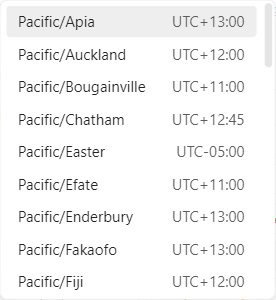
Below the field, Currently UTC±HH:MM shows the chosen zone's offset right now. It updates while the editor is open, so it stays right across a daylight-saving change. The note stores the zone name, never the offset.
A timezone is recorded, not used yet. Nothing on the chart schedules or shades by it, as the hint under the field says. See Days, not hours.
Colour
Colour rests as a single row: a swatch, the colour's value and a sample bar. Click it to open the picker:
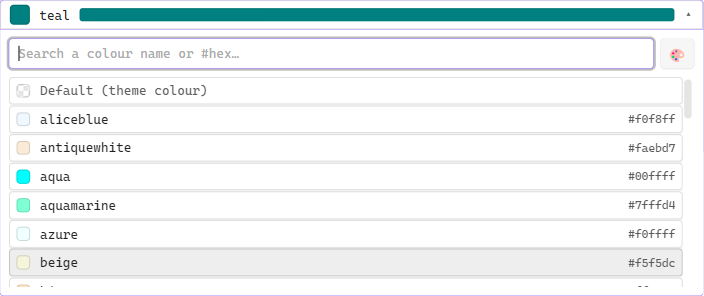
Search the CSS3 colour names, or type a hex value and press Enter. The 🎨 button opens your system's colour picker for a custom colour. Default (theme colour) clears the value.
Previews: Week, Gantt strip and Year
The three preview tabs draw the calendar as the form currently stands, unsaved edits included, so you can check a change before saving it.
Week
A representative week, Monday to Sunday, built from the working pattern and any availability blocks. Each working day lists its authored hours, and a split shift shows as two blocks:
| Light | Dark |
|---|---|
 |
 |
The Week tab is the only place the plugin draws working hours. Nothing on the chart schedules or shades by hours yet (Days, not hours). A working day with no hours reads Working.
For a calendar, the Week tab shows a typical week, not particular dates, so your Non-working days and Events are not on it. Use the Gantt strip or Year tab for those.
Gantt strip
A zoomed-out strip of days around the dates the calendar lists, with the calendar's non-working days and events shaded. Marker events are drawn as lines, labelled with their names. Hover a day to see its date.
| Light | Dark |
|---|---|
 |
 |
Year
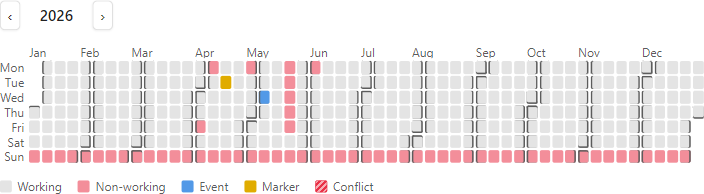
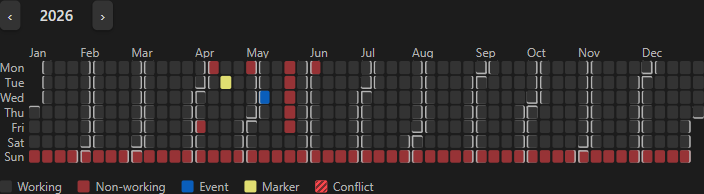
Every day of one year, with a row per weekday and a column per week. Each day is Working, Non-working, Event or Marker. The ‹ and › buttons step between years, and hovering a day shows its date and the name of the entry that set it.
| Light | Dark |
|---|---|
 |
 |
Editing a calendar set
A calendar set has Name, Description and Colour like a calendar, and a
list of Member calendars in place of the schedule and exceptions. Each member is
a [[wikilink]] to a calendar note, and typing [[ suggests notes from the vault.
+ Add member adds a row. The set is saved as its calendars list.
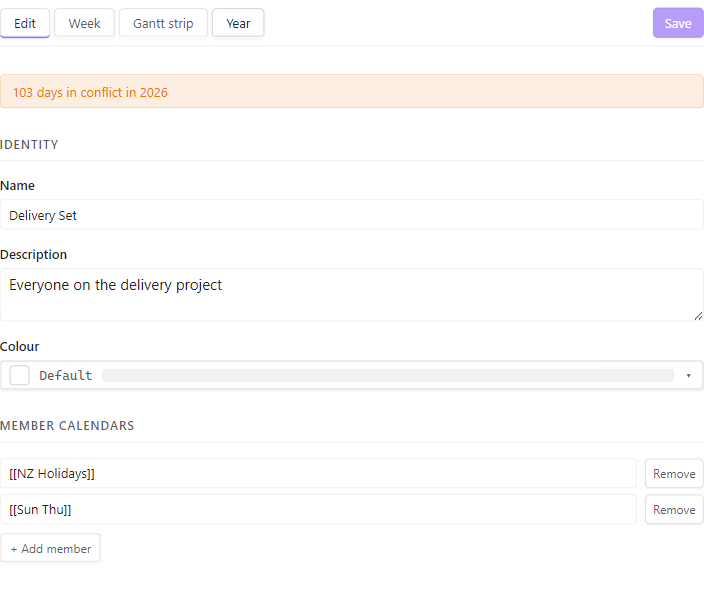
For a set, the preview tabs show the member calendars combined. A day that one member has off while another member's pattern or availability blocks make it a working day is marked Conflict. A status line under the header can report the set's conflicts and member links that do not lead to a usable calendar. What a set does on the chart is on Calendar sets.
Availability blocks
An availability block is a recurrence rule with its own working hours, under
the availability key. How blocks and the pattern decide the working days is
explained under
What a calendar note is. The editor shows
that a calendar has blocks but does not edit them yet, so write them in Markdown:
pattern: "FREQ=WEEKLY;BYDAY=MO,TU,WE,TH,FR"
working_hours:
  - "09:00-12:30"
  - "13:30-17:30"
availability:
  - pattern: "FREQ=WEEKLY;BYDAY=SA"
    hours:
      - "10:00-14:00"
non_working:
  - date: 2026-04-03
    name: Good Friday
This team works Monday to Friday and also an on-call Saturday. Days off belong in
non_working, not in a block. On the calendar's own Week tab, each block's hours
show on the days it covers, as in the Saturday above.
Saving and closing
The header with the tabs, Save and the Unsaved changes cue stays pinned to the top of the editor however far you scroll:

Save writes only the keys you changed. Keys you did not touch and the note's body stay as they were.
Closing an editor tab with unsaved changes asks first:
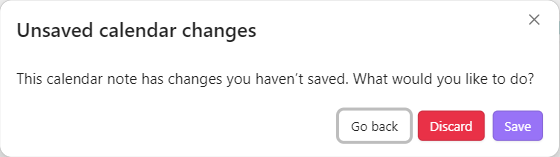
- Go back returns to the editor. It is the default, and pressing Escape chooses it too.
- Discard closes without saving. It is disabled while a save is still finishing.
- Save saves, then closes. It is disabled while a field is flagged. If the save fails, the editor stays open.
The question is asked only when you close the tab. Anything else that replaces the
editor drops unsaved changes without asking, for example Open calendar note as
markdown, deleting the tngantt line, disabling the plugin or opening another
note in the same tab. Save first.
If the note changes on disk while you have unsaved changes, for example through sync or another editor, a banner says This note changed on disk while you were editing. Reload and discard my changes loads the new version. If you save instead, only the keys you changed are written into the new version, and the form keeps showing its own values for the rest until you reopen the note. With no unsaved changes, the form simply refreshes.
Comments in the frontmatter
The editor rewrites each changed key as a whole. A YAML comment inside that key, on the key's own line or between its list items, is lost when you save a change to that key. Comments on other lines, keys you did not change and the note's body are kept exactly as written. A key the note did not have before is added at the end of the frontmatter.
Write the frontmatter plainly
Write each key unquoted and followed directly by its colon (description: …),
and indent each list's - items under their key, as in the examples on this page
and as Obsidian's own property editor writes them. The editor finds keys and
lists by that layout. Saving a change to a key written another way, such as
"description": … or description : …, adds a second copy of the key, and
emptying it removes nothing. If any line of a list starts at the left margin, such
as its - items or the closing ] of a list written across several lines in
brackets, saving a change to that list leaves old lines behind. A second copy of a
key, or old list lines left behind, break the frontmatter, so tidy those keys in
Markdown before editing them here.