Calendar sets
A task follows one calendar link. Sometimes one calendar is not enough. A team may be split across two offices with different working weeks, or you may keep your team's working week in one note and a shared list of public holidays in another. A calendar set is a note that combines several calendars into one, so a task can follow all of them through a single link.
This page covers what a set does and how the chart shows it. What a calendar note is, and how shading and working days work for one calendar, is on Calendars and working time. How to edit a set's members in a form is under Editing a calendar set.
A set combines calendar notes, not calendar feeds
Every member of a set is a wikilink to a calendar note in your vault: a
note whose frontmatter carries tngantt: calendar. A set never contains a
calendar feed. The ICS, Google and Microsoft calendars TaskNotes subscribes
to can appear on the chart, once you turn them on, as read-only
calendar items. They define no working time, and a link
to one is not a set member.
A worked example
A project team is split between two offices. The Auckland office works Monday to Friday and has a public holiday on Friday 10 April 2026. Its calendar note is NZ Holidays. The Riyadh office works Sunday to Thursday; its calendar note is Sun Thu. You create a set holding both:
---
tngantt: calendar-set
description: Both offices together
calendars:
  - "[[NZ Holidays]]"
  - "[[Sun Thu]]"
---
A task whose Calendar Property links to this set gets the days off of both offices. Friday is off in Riyadh and Sunday is off in Auckland, so the task works Monday to Thursday only.
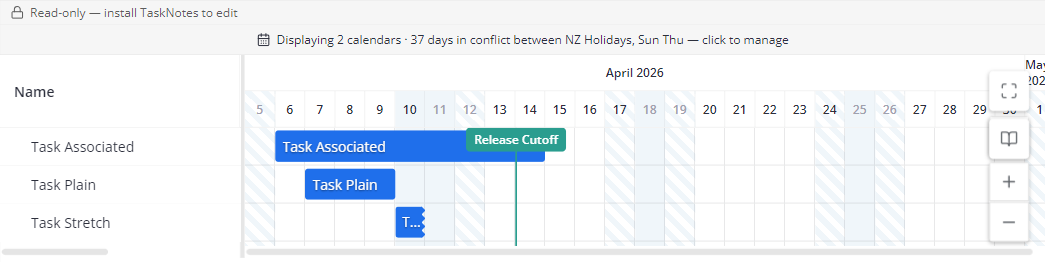
Shown together, the two calendars disagree about Fridays and Sundays. The chart marks those days with diagonal stripes, and a banner above the chart names the calendars that disagree:
| Light | Dark |
|---|---|
 |
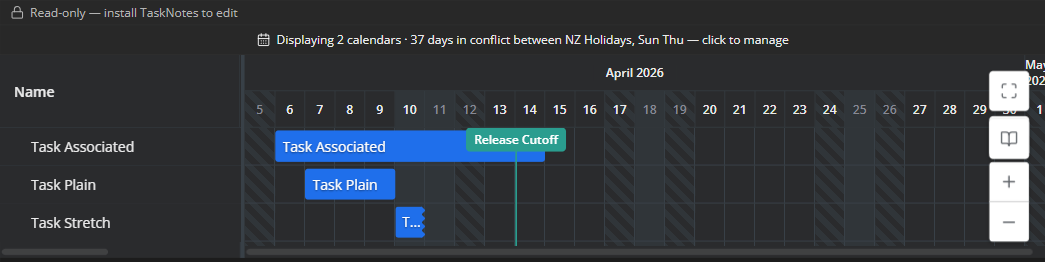 |
Friday 10 April is not striped. Auckland has it off for the holiday and Riyadh never works Fridays, so the two agree that nobody works that day. The vertical line on 14 April is a marker from NZ Holidays.
What a set note is
A set is a Markdown note whose frontmatter carries tngantt: calendar-set:
| Key | What it does |
|---|---|
calendars |
The member calendars, as a list of wikilinks. |
description |
A line saying what the set is for. It appears beside the set in Select calendars…. |
color |
The set's colour. It colours the bars of tasks that link to the set (see Bar colour). |
The quickest way to get one is the Create calendar set command, which creates an empty set and opens it in the calendar editor.
Which members count
- Write each member as a wikilink in double brackets, quoted, as Obsidian's own
property editor writes it:
"[[NZ Holidays]]". A link may carry an alias,"[[NZ Holidays|Auckland]]". A#headingpart is ignored, because a set's members are whole notes. - An entry written any other way, such as a plain name or a Markdown link, is not
a member. If
calendarsis not a list, the set has no members. - A member link has to lead to a calendar note. A link to a missing note, to an ordinary note, or to an invalid calendar note is skipped.
- Sets do not nest. A link to another set is skipped too.
- The members that remain still combine. A set with no usable members gives its tasks no days off.
To check whether a set skips a member, open it in the calendar editor. Its status line can report member links that do not lead to a usable calendar.
How the members combine
For a task that links to the set, a day is off when any member has it off:
a date in that member's non_working list, or, for a member with working rules the
chart can use (a pattern or availability blocks), a day none of those rules
cover. That is what
Working days and
Split segments count for the task. In the example,
Friday is off because of Sun Thu and Sunday because of NZ Holidays.
A member with no working rule the chart can use adds only its non_working dates.
That is a member with no pattern and no availability blocks, such as a plain list
of public holidays, or one whose rules the chart ignores (see
What a calendar note is). That makes a set
the way to share one holiday list across several team calendars.
For shading, each member is shaded as a calendar of its own, exactly as What the shading shows describes, and together they shade every day any of them shades. Until you use Select calendars…, the chart shades the members of every set your tasks link to; once you tick or untick a calendar, set or member there, your choice decides. The events and markers of the shaded members appear too. They never make a day off.
Conflicts
When the chart shows two or more calendars, it compares them day by day. A day is
in conflict when one calendar has it off while another calendar has it as a
working day by its own pattern or availability blocks. It does not matter
whether the two calendars come from one set, from two sets, or were picked
separately.
- A calendar with no working rule the chart can use never makes a day a working day, so it can only be on the "day off" side. Combine a Monday-to-Friday team calendar with a holidays-only calendar, and a holiday on a weekday is a conflict unless the team calendar also lists it as a day off.
- Events and markers never take part in a conflict.
- A conflict is a report, not a rule. A task that follows the set still treats the day as a day off, because one member has it off.
On the chart, a conflict day is drawn with diagonal stripes instead of the plain shade. Like the shading, the stripes appear only at the Days and Hours scales, and stripes on a locale weekend are cleared while Highlight weekends is off (see What the shading shows). The banner still counts those days.
Seeing why a day conflicts
The calendar-status banner names the calendars that disagree. To see who disagrees on a particular day, open the set in the calendar editor. Its Week, Gantt strip and Year tabs mark the conflict days in the dates each one shows, and hovering one lists the date and every member that disagrees, each with the name it gives the day, if any. For a set of a Monday-to-Friday Team calendar and a Public holidays calendar, hovering Good Friday could show:
The calendar-status banner
A banner above the chart reports on the calendars the chart is showing. Click it to open Select calendars…. It can show:
| Part | Meaning |
|---|---|
| Displaying 2 calendars | How many calendars the chart is shading, once it is two or more. A set counts as its members, so one set of two calendars reads Displaying 2 calendars. |
| 37 days in conflict between NZ Holidays, Sun Thu | How many conflict days fall in the stretch of dates the chart shades (see What the shading shows), and which calendars disagree. Past three calendars it adds +N more. |
| 1 invalid calendar note | A note in the vault carries tngantt: calendar but cannot be used. Select calendars… lists it with the reason. |
| 1 selected link unresolved | A calendar or set you ticked in Select calendars… no longer leads to a calendar or calendar set, for example because the note was deleted. |
With one calendar shown and nothing wrong, there is no banner.
Select calendars…
Select calendars… chooses which calendars this view shades, and it is where sets show up in the view. How the choice relates to scheduling, and the Default calendar row, are explained under Choosing which calendars shade.
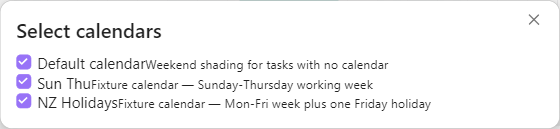
- Each calendar and each set has one row, followed by its description if it has one.
- A set's row has Show members, which lists its member calendars under it. Clicking a member there does not always tick or untick just that member; the rule below decides what is shaded.
- When some members of a set are ticked and others are not, the set's tick box shows as partly ticked. Clicking a partly ticked or unticked set ticks every member; clicking a fully ticked set unticks it.
- Invalid calendar notes, and saved choices whose link no longer leads to a calendar or set, are listed with the reason and cannot be ticked.
A calendar is shaded while any ticked row includes it: its own row, or a ticked set in which it is ticked as a member. Unticking it inside a set does not stop the shading while its own row is still ticked.
That matters the first time you tick or untick a calendar, set or member. Until then, the chart shades the calendars your tasks link to, including the members of their sets. That first tick or untick saves each of those calendars as ticked on its own row, so the chart does not jump. From then on the rule above applies: to stop shading a calendar, untick it everywhere it is ticked.
Bar colour: By calendar
Set Bar fill or Bar strip to By calendar to colour each bar by the calendar its task links to.
- A task that links to a set takes the set's colour, not a member's. If the
set has no
color, the bar keeps the default treatment. - A task that links to a calendar takes that calendar's colour.
- A task with no calendar, one whose link does not lead to a calendar or set, or one whose calendar or set has no colour (or one the chart cannot use), keeps the default treatment. See Bar colors.
The colour follows the task's own link. Select calendars… does not change it.
Markers and the today line
A marker is a calendar event drawn as a vertical line across the chart instead
of shading its day. Set marker: true on a single-day entry under events. On a
range of more than one day or a recurring event, marker: true draws no line and the
entry stays an ordinary event; a non_working entry with marker: true is still a
day off with no line.
- The chart draws the markers of the calendars it shades, so a set's members' markers appear once the set is shaded.
- A marker is drawn in its calendar's colour, or in the theme's accent colour when the calendar has none (or one the chart cannot use), and labelled with the event's name, or its date when it has no name.
- Unlike shading, markers stay visible at every scale, including Weeks and Months.
- Hover a marker to see its name and calendar. When markers sit too close for their labels to fit, they stack, or merge into one N markers label; hover it to list them.
- A marker never holds a task back.
The today line is a separate line labelled Today, in the theme's accent colour. It is drawn whenever today's date is inside the part of the timeline the chart has drawn, whether or not you use calendars.