Calendars and working time
A plain timeline treats every day the same. Give it a three-day task that starts on a Friday and it tells you the work is done on Sunday, even though nobody works at the weekend. A calendar tells the chart which days your work actually happens on. With one in place, the chart can:
- shade the days nobody works, so a bar that crosses them no longer looks like solid working time;
- count working days, so an end the plugin works out from an estimate skips weekends and holidays (opt-in);
- split bars around those days, so you can see which part of a span is work (opt-in).
All three are day-level. See Days, not hours.
A worked example
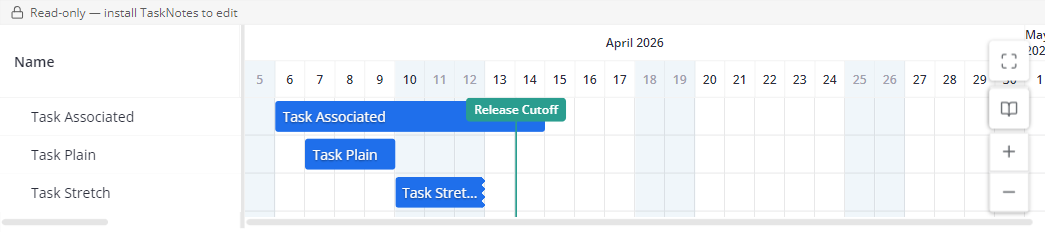
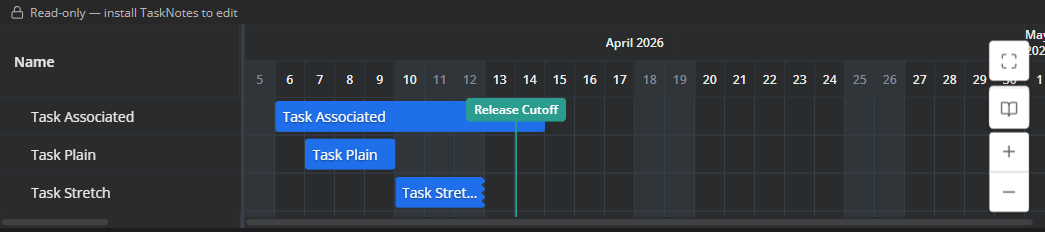
A four-person team works Monday to Friday. Friday 10 April 2026 is a public holiday. Task Stretch starts on that Friday. It has no due date and an estimate of three days (4,320 minutes), so the plugin works out where it ends.
With no working time, three days from Friday is Friday, Saturday, Sunday. The bar ends on Sunday 12 April. The holiday column and both weekends are shaded, but the bar runs straight through them:
| Light | Dark |
|---|---|
 |
 |
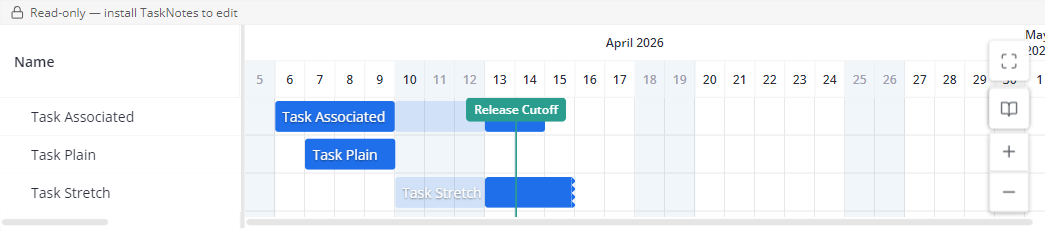
Switch the view to Working days and the same estimate counts only the days the team works. Friday is a holiday and the weekend is off, so the three working days are Monday to Wednesday and the bar now ends on Wednesday 15 April. The start stays on Friday because somebody wrote that date down. With Split segments on as well, the days the bar does not work are drawn as a faint ghost:
| Light | Dark |
|---|---|
 |
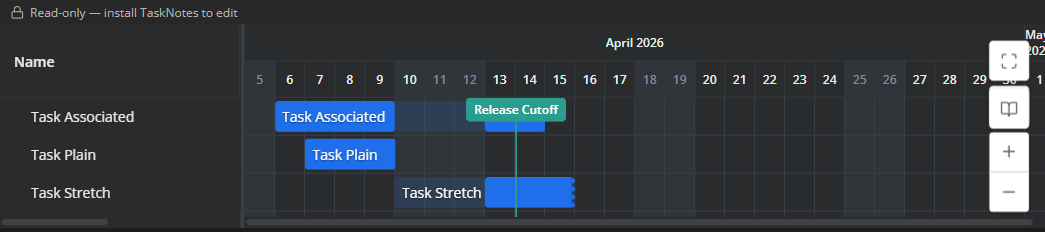 |
Task Associated has both of its dates written down, 6 to 14 April, so it does not move. Split segments only shows which of its days are off. Task Plain has no calendar, so nothing about it changes. The vertical line on 14 April is a calendar marker, which is drawn as a line and does not shade anything.
What a calendar note is
A calendar is an ordinary Markdown note whose frontmatter carries
tngantt: calendar. The calendar behind the example looks like this:
---
tngantt: calendar
description: Team calendar, Monday to Friday
color: "#2a9d8f"
pattern: "FREQ=WEEKLY;BYDAY=MO,TU,WE,TH,FR"
non_working:
  - date: 2026-04-10
    name: Public holiday
events:
  - date: 2026-04-14
    name: Release cutoff
    marker: true
---
| Key | What it does |
|---|---|
pattern |
The working days, as a recurrence rule. Every day that neither this rule nor an availability block covers is a non-working day. |
non_working |
Individual days off: a bare date, {date, name}, or a {start, end} range (both days included). Dates only, no recurrence rules here. |
availability |
Extra working days, each block with its own pattern. A Monday-to-Friday pattern plus a Saturday block works Monday to Saturday. A non_working date is still a day off even when a block covers it. |
events |
Named days to show on the chart. An event is shaded but never holds a task back by itself. Set marker: true on a single-date event to draw it as a line instead. |
color |
The calendar's colour. It appears beside the calendar in Select calendars… and on its markers. |
The quickest way to get one is the Create calendar command. It creates
New Calendar.md in the Calendars folder (numbered if that name is taken) with a Monday-to-Friday pattern and an empty
non_working list, then opens it in the calendar editor. The command Open
calendar note as markdown shows you the raw frontmatter.
A top-level pattern with no FREQ= part makes the whole calendar invalid, and
nothing uses it. A top-level pattern that has FREQ= but that the chart cannot evaluate, such as
a misspelt weekday or an hourly rule, is ignored instead: the calendar stays in
use and its non_working days still count. A single
malformed entry in a list is dropped and the rest of the calendar still works.
Recurrence rules, and what they are not
pattern takes an RFC 5545 RRULE value, which is the recurrence syntax
iCalendar uses. If you have written a repeating event rule before, it will look
familiar: FREQ=WEEKLY;BYDAY=SU,MO,TU,WE,TH is a Sunday-to-Thursday week. If the
top-level pattern uses INTERVAL, COUNT or UNTIL, the note also needs a
pattern_start date to count from; without one the whole calendar is invalid.
There is no iCalendar import or export. A calendar note is this plugin's frontmatter in a Markdown file, and other calendar apps cannot read it. Calendar feeds you subscribe to appear as calendar items. They do not define working time.
Turn it on: from no calendar to a shaded, stretched chart
- Open the command palette and run Create calendar. Add your days off to its
non-working days. In the editor that is the Non-working days list; in
Markdown it is
non_working. Rename the note if you like, for example to Team calendar. - On each task that follows this calendar, add a property holding a wikilink to
the note, for example
calendar: "[[Team calendar]]". A task follows one link, to a calendar or to a calendar set; a set combines the days off of all its calendars. If the property holds a list, only the first link counts. - In the Gantt view, open the view-settings menu and, in the Fields group, set Calendar Property to that property. At the Days and Hours scales, the chart now shades the calendar's non-working days.
- In the Timeline group of the same menu, set Estimate meaning to Working days (skip non-working). Tasks with a worked-out end, such as a start date plus an estimate, now skip the calendar's non-working days. The estimate comes from the Time Estimate Property. The estimate is in minutes, and every started 1,440 minutes (24 hours) counts as one day, so 480 minutes and 1,440 minutes are both one day. A task with no estimate uses the view's default task duration.
- (Optional) On the same Timeline group, set Non-working-day rendering to Split segments to draw each bar's days off as a ghost.
- (Optional) Run Select calendars… to choose which calendars the chart shades. See the next section.
Choosing which calendars shade: Select calendars…
Select calendars… is a command, available while a Gantt view is open. It opens a list with one row per calendar and calendar set in the vault, plus a Default calendar row. Tick the ones this view should shade. The choice is saved with the view.
- Until you choose, the chart shades every calendar that its tasks link to through the Calendar Property.
- Once you choose, your choice decides the shading and which calendars' markers are drawn, not the scheduling. Each task still stretches and splits by the calendar it links to itself. You can therefore shade a calendar that no task follows, or have a task stretch over days that are not shaded.
- The Default calendar row is the locale-weekend shading. It is the same switch as Highlight weekends, so turning either one off turns off the other.
- In a vault with no calendars and no calendar sets yet, the list offers Create calendar instead.
What the shading shows
For every calendar it shows, the chart shades:
- the calendar's
non_workingdays; - every day that neither its
patternnor anavailabilityblock covers; - its
events. These are shaded but never hold a task back.
A calendar only ever adds shading. The locale weekend is shaded separately while Highlight weekends is on. If your calendar works on a Sunday, that Sunday stays shaded until you turn Highlight weekends off, or untick Default calendar in Select calendars…. Turning Highlight weekends off also clears any calendar shading that falls on a locale weekend. Calendar shading on other days stays.
Shading appears only at the Days and Hours scales. A week or month column is not a single day, so nothing is shaded there.
Calendar shading is drawn around the view's tasks and calendar items, including rows you have hidden: from 62 days before the earliest to 62 days after the latest. A view with no tasks and no calendar items shows no calendar shading and no markers, even for a calendar you selected. The locale weekend is not limited this way.
Working days: which dates move
Estimate meaning ships as Calendar days, so an estimate counts every day until you opt in. With Working days (skip non-working) selected:
- Only a worked-out date moves. A task with a start and no due date extends its end forward over working days. A task with a due date and no start extends its start backward.
- A date you wrote down never moves, even when it falls on a day off. In the example, Task Stretch still starts on the holiday. That day uses up none of the estimate, and under Split segments it is drawn as a ghost.
- A task with both dates is never stretched: working days change neither date. If its start comes after its due date, the chart draws the bar from the due date to the start, exactly as it does without a calendar.
- A task with no dates at all is placed at today as a placeholder and does not stretch.
- A task with no calendar never stretches. This includes a task whose Calendar Property link does not resolve to a calendar or calendar set.
- The stretch counts the non-working days of the task's own calendar, not the calendars chosen in Select calendars….
- If the calendar blocks every day within reach, the task falls back to calendar days rather than searching forever.
One task can differ from the view through Estimate meaning override.
Split segments
Non-working-day rendering → Split segments adds segments on top of the shading. It does not replace it. Each bar's non-working days are drawn as a faint ghost and its working days as solid pieces. Like the shading, it appears only at the Days and Hours scales; at Weeks and Months the bar is drawn continuous.
A bar whose span is entirely non-working stays one continuous bar. A one-day task that lands on a Saturday has no working day to contrast with, so it is not drawn as a ghost. Like the stretch, splitting follows the task's own calendar.
Days, not hours
Working time here is counted in whole days. A calendar note can also record
working hours (working_hours, and hours on an availability block), and the
calendar editor's Week preview displays them. Nothing on the chart schedules
or shades by those hours yet. At the Hours scale a day off is shaded as a
whole day, and a working day counts as a whole day however few hours it has.