Find & focus
Large charts get hard to navigate. Find & focus lets you jump straight to any task.
How to focus a task
Open the task search one of two ways:
- Click the crosshair button (⌖) in the bottom-right button stack on the chart (see Chart controls); or
- open the command palette (
Ctrl/Cmd-P) and run TaskNotes Gantt: Focus on task…. This command has no default hotkey — if you focus often, assign one under Settings → Hotkeys (search "TaskNotes Gantt"). It's available whenever a Gantt view is open — it acts on the active Gantt, or your most recently opened one if the active tab isn't a Gantt.
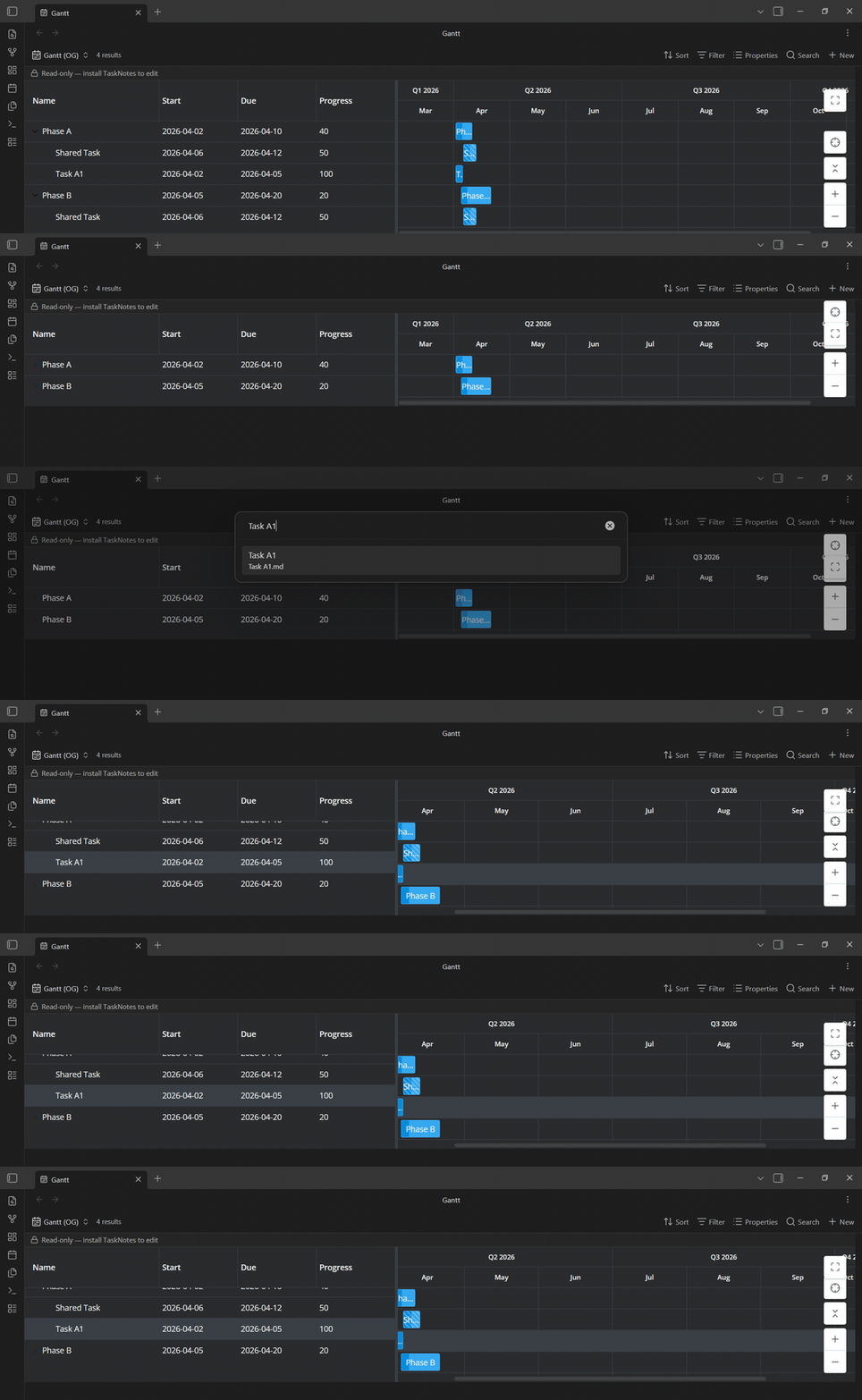
A search box opens ("Search tasks by name or path…"). Type part of a task's name, use the arrow keys to choose one, and press Enter. The Gantt then:
- expands the task's parents so the row is visible,
- zooms and scrolls to bring it into view, and
- highlights it briefly.
Focusing is one-shot navigation — it moves you to the task but doesn't filter the chart or open the note, and there's nothing to "un-focus": just carry on, or focus another task. The search includes tasks pulled in through relationships, so you can jump to a related task even if it isn't a direct row in your Base.