Chart controls
Where every on-chart button lives and how to drive the timeline — zooming, collapsing, focusing, sorting, and going full screen. These controls sit on the chart itself; two of them also have command-palette entries (see Commands & hotkeys).
The floating buttons
Two clusters of buttons float over the timeline.
Bottom-right — the zoom stack
A vertical stack of round buttons in the bottom-right corner of the chart:
| Button | Icon | What it does |
|---|---|---|
| Focus on task | crosshair (⌖) | Opens a search box to jump to any task — see Find & focus. |
| Reset to Base sort | ↺ | Clears a column sort and restores your Base's row order. Appears only after you've sorted by clicking a column header. |
| Collapse all / Expand all | stacked chevrons | Collapses every parent (hiding its children) or expands them all. Appears only when the chart has parent rows; the icon flips to show the next action. |
| Zoom in | plus (+) | Zooms the timeline in one step (finer scale). |
| Zoom out | minus (−) | Zooms the timeline out one step (coarser scale). |
No zoom-to-fit or scale dropdown on the chart
Zooming is + / − only. To choose the scale the chart opens at, set Default Scale in the view options. A one-time best-fit zoom also happens automatically when you Focus a task.
Top-right — full screen
A single button in the top-right corner (a ⤢ maximize icon) — see Full screen below.
Full screen
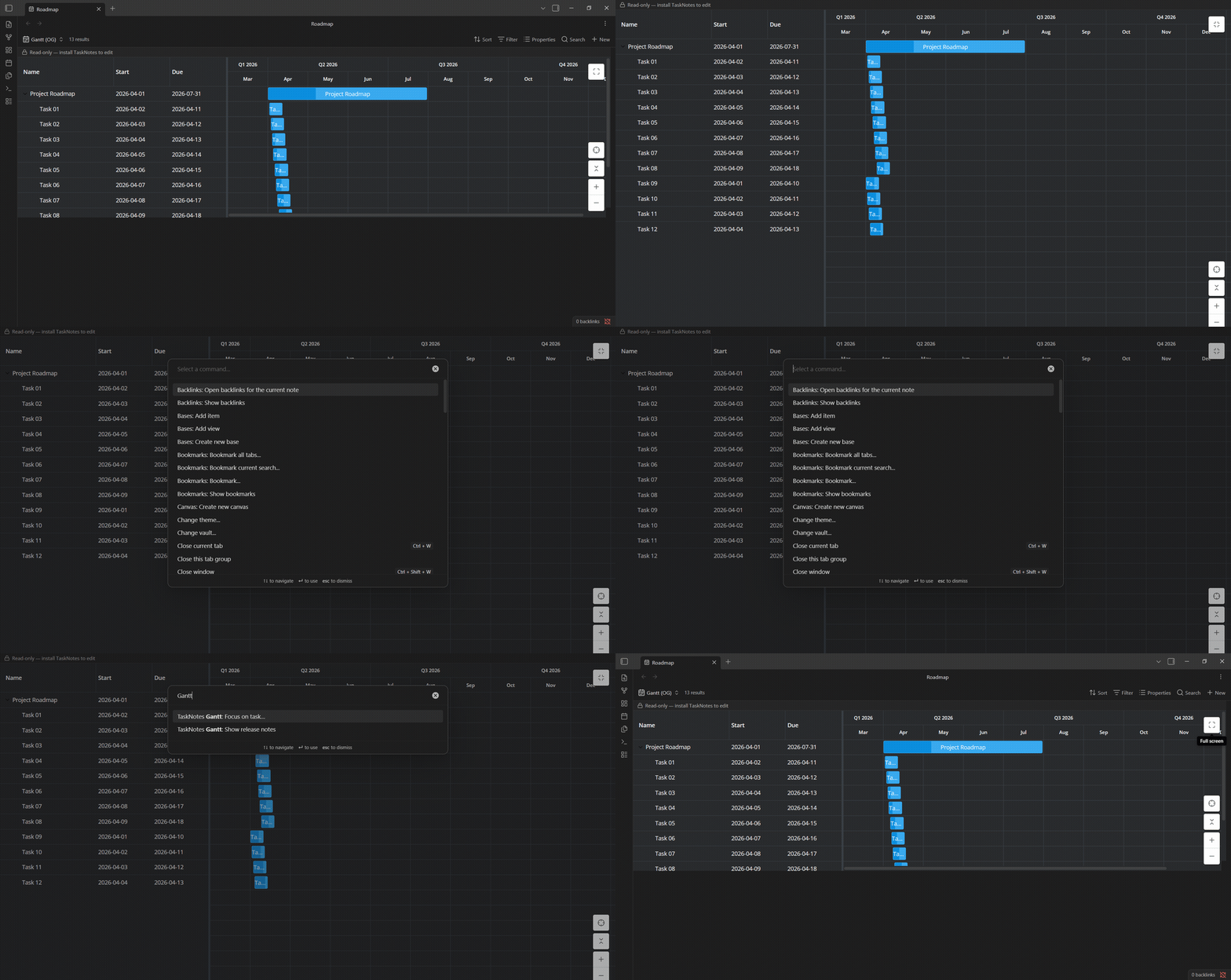
Click the ⤢ button in the top-right corner of the chart to expand it to fill the Obsidian window. This is not your operating system's full screen — it maximizes inside Obsidian, so the command palette, TaskNotes' edit modal, menus, and hover previews still appear on top of the chart.
To leave full screen, do any of:
- click the same button again (now a ⤡ minimize icon, tooltip Exit full screen);
- press
Escape— as long as no Obsidian menu, modal, or popup is open; - switch to another tab or pane — the chart exits full screen automatically.
There's no command or default hotkey for full screen; it's the button (and
Escape to exit).
Collapse & expand the tree
When tasks have parents and children, each parent row shows a chevron (▸ / ▾) next to its name in the grid:
- Click the chevron to collapse (hide) or expand (show) that one parent's children.
- To collapse or expand everything at once, click the Collapse all / Expand all button in the bottom-right stack.
Collapse state is per-session — it isn't saved to the Base, so reopening the view starts fully expanded.
Zoom & pan
- Zoom with the + / − buttons in the bottom-right stack.
- Pan by scrolling the timeline horizontally (and vertically when the list is long).
- The scale the chart opens at is the Default Scale view option.
Sort by a column
Click a grid column header to sort rows by that column; click again to cycle ascending → descending → back to the Base's order. While a column sort is active, the Reset to Base sort button appears in the bottom-right stack to clear it in one click. This sort is temporary and isn't saved to the Base.
The toolbar (optional)
The Gantt can show a small toolbar above the chart. It's off by default — turn it on with Show toolbar in the view options (see Appearance). Today the toolbar holds a Theme switch — Auto / Light / Dark — that themes this view independently of Obsidian's own light/dark setting.
Commands & hotkeys
The plugin registers two Obsidian commands. Open the command palette with
Ctrl/Cmd-P and type "TaskNotes Gantt":
| Command | What it does |
|---|---|
| TaskNotes Gantt: Focus on task… | The same jump-to-a-task search as the crosshair button. Available whenever a Gantt view is open — it targets the active Gantt, or your most recently opened one if the active tab isn't a Gantt. |
| TaskNotes Gantt: Show release notes | Opens the in-app "What's New" notes. |
Neither command has a default hotkey. To add one, go to Settings → Hotkeys, search TaskNotes Gantt, and assign a key.